
SharePoint Security Explained for Business Owners
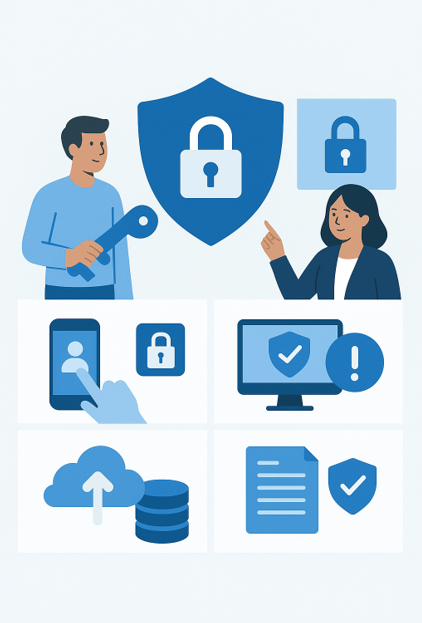
For many businesses, SharePoint has become the central hub for storing documents, managing projects, and collaborating with staff. But with cyber-security requirements growing heavier each year, many business owners still worry: Is SharePoint secure enough for my business?
The good news is: Yes, when set up properly.
Below is a simple, jargon-free explanation of the key SharePoint security features every business owner should understand.
1. Access Control – Who Can See What
Access control is simply about making sure the right people have the right access.
In SharePoint, you can:
• Allow staff to see only the folders they need.
• Stop someone from editing documents they should only view.
• Give temporary access to contractors or clients.
• Remove access instantly if someone leaves the business.
Think of it like giving keys to different rooms in an office — not everyone needs a master key. Proper access control reduces accidental mistakes and stops unauthorized access.
2. Sensitivity Labels – Automatic Protection for Confidential Files
Sensitivity labels are like digital stickers you apply to documents to protect them.
For example:
• “Internal Only”
• “Confidential”
• “Highly Sensitive”
When you label a document, SharePoint can automatically:
• Block it from being emailed outside the company.
• Prevent downloading to personal devices.
• Encrypt the file so only authorised users can open it.
This ensures confidential information stays in the right hands — even if someone tries to share it by mistake.
3. Conditional Access – Access Based on Risk
Conditional access checks how and where a user is signing in, and only allows entry if it looks safe.
For example, SharePoint can block access if:
• Someone tries to log in from a suspicious overseas location.
• A user is on a device without antivirus protection.
• A login attempt looks unusual compared to normal behaviour.
It’s like a bouncer at the door — if something doesn’t look right, access is denied. This stops many attacks before they even reach your data.
4. Multi-Factor Authentication (MFA) – A Second Lock
MFA is one of the simplest and strongest security protections available.
It works like this:
• You log in with your password.
• SharePoint asks you to approve the login on your phone.
Even if a hacker knows your password, they still can’t get in without your phone. MFA blocks over 99% of common cyber-attacks.
5. Data Loss Prevention (DLP) – Preventing Accidental Leaks
DLP monitors documents and emails for sensitive information, such as:
• Tax File Numbers
• Credit card details
• Client personal info
• Business financial documents
If it detects something sensitive, it can:
• Warn the user
• Block the action
• Automatically encrypt the document
DLP is a safety net. It stops accidents before they turn into data breaches — which is especially important for businesses with compliance obligations.
6. Backup Options – Recovering Quickly
While Microsoft protects the SharePoint platform, business owners are still responsible for backing up their data.
Why?
Because Microsoft ensures uptime, but not recovery from:
• Accidental deletion
• Staff mistakes
• Malicious deletion
• Ransomware corruption
• Long-term retention needs
A proper SharePoint backup solution means you can:
• Restore individual files or entire sites
• Recover older versions
• Meet compliance and audit requirements
• Sleep easier knowing your data is safe
This is essential for any business with cyber-security insurance or regulated data.
Why This Matters for Your Business
SharePoint, when secured properly, helps businesses:
• Meet modern cyber-security standards
• Protect sensitive data
• Pass insurance and compliance checks
• Reduce risk of breaches or fines
• Maintain trust with clients and partners
For many SMEs, SharePoint can now replace traditional file servers — with better security, better control, and far easier management.
Strengthen SharePoint Security Today with MCG Computers.